
Internet Explorer 9, What’s New?
 If you have not yet downloaded Internet Explorer 9 Beta, here is a link to do so.
So what’s new? Well, here is information straight from Microsoft itself, but with high quality images.
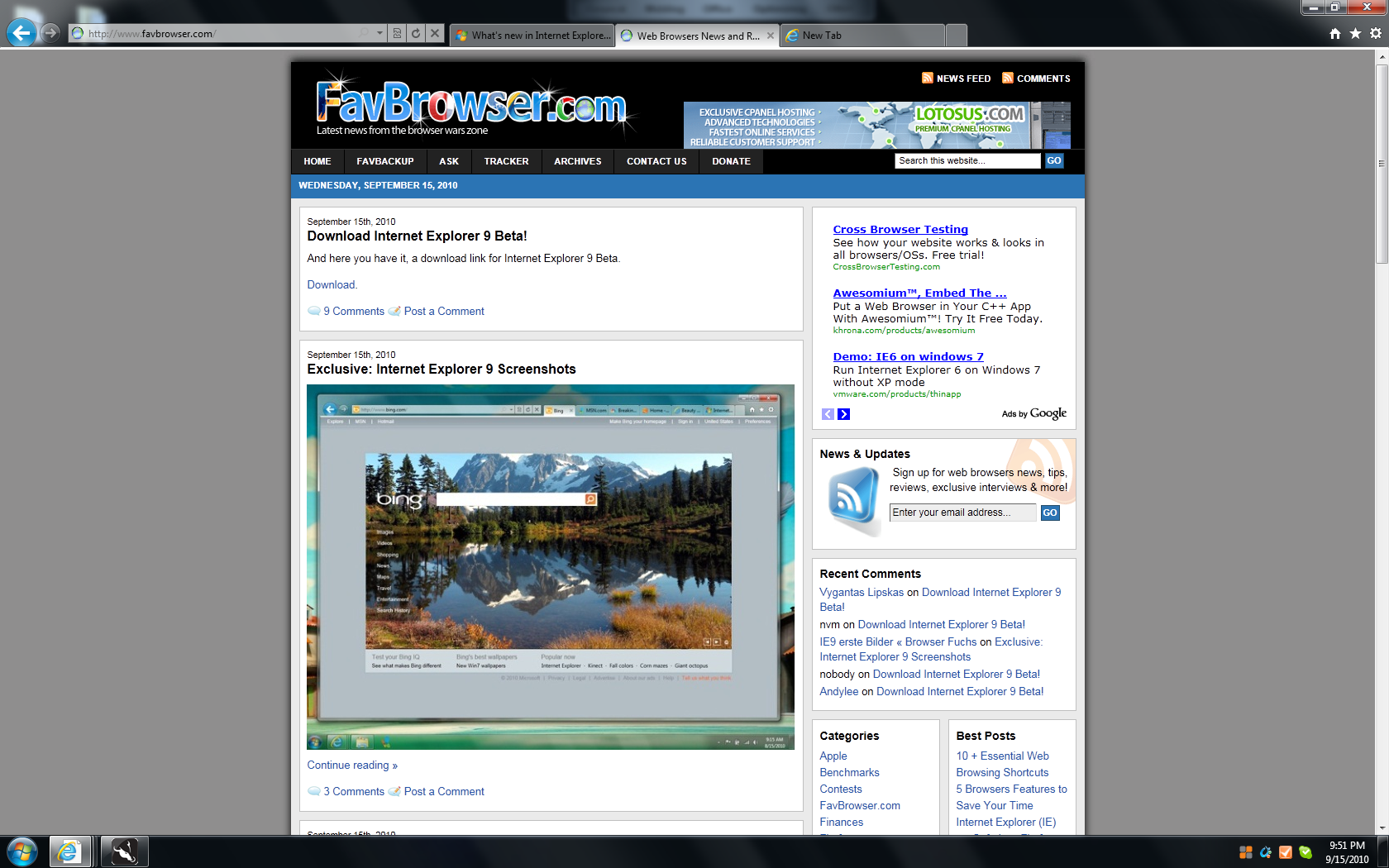
Streamlined design
The first thing you’ll notice when you open Internet Explorer 9 is the compact user interface. Most command bar functions, like Print or Zoom, can now be accessed by clicking the Tools button, and your favorites appear when you click the Favorites button. Otherwise, Internet Explorer gives you the basic controls you need, and lets the web take center stage.
Pinned Sites
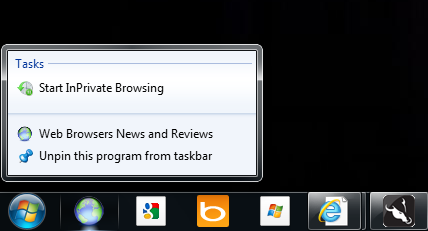
If you visit certain webpages regularly, Pinned Sites allows you access them directly from the taskbar on your Windows 7 desktop.
Download Manager
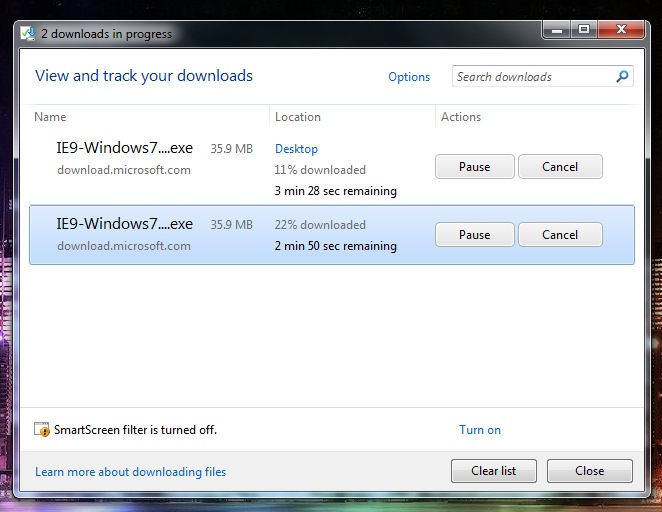
Download Manager is a powerful new feature that keeps a running list of the files you download from the Internet and notifies you when a file could be malicious. It also lets you pause and restart a download—if you have a slow internet connection—and shows you where to find downloaded files on your computer. You can clear the list at any time.
Enhanced tabs
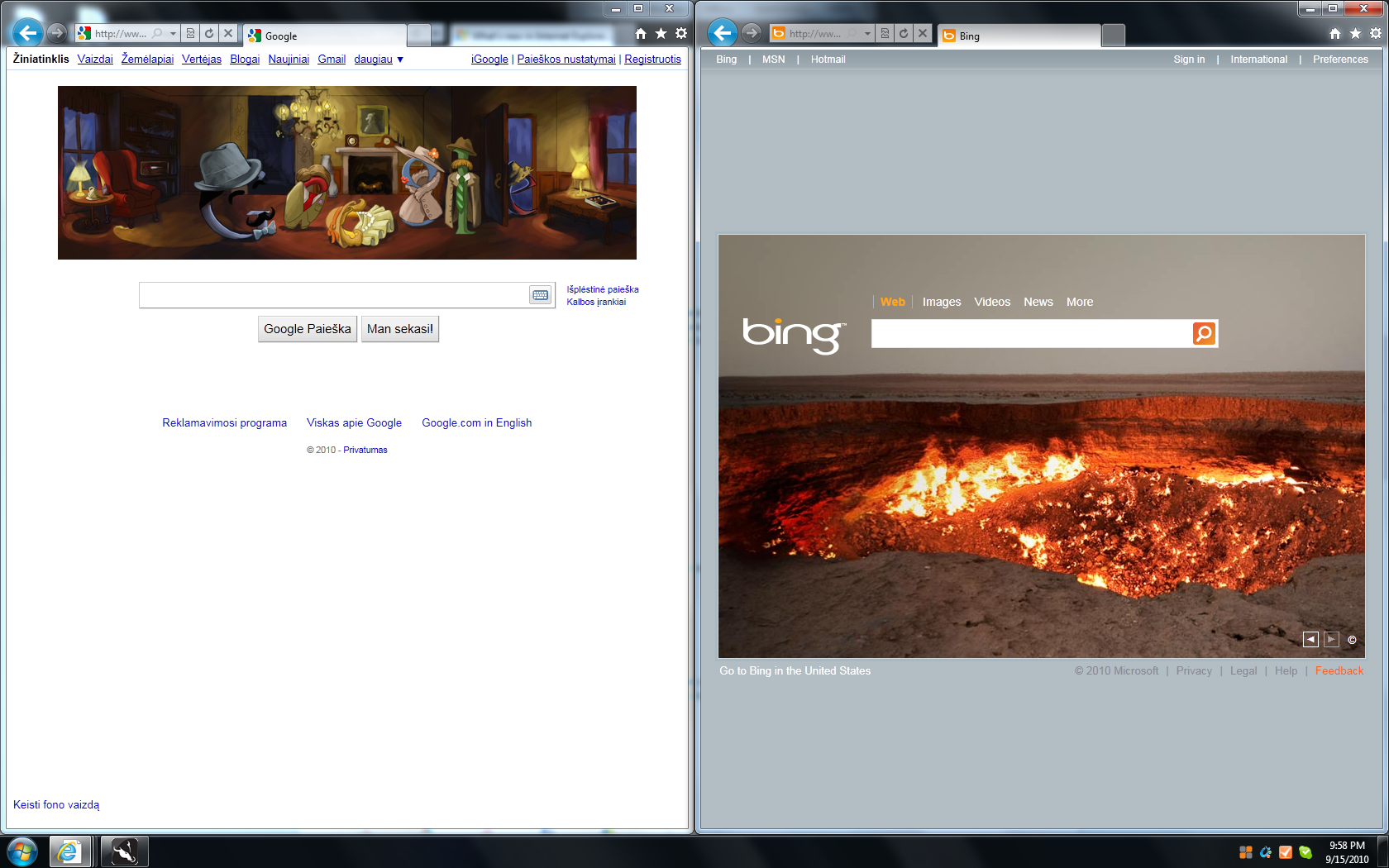
Tabbed browsing allows you to move easily between multiple open webpages in a single window, but there might be times when you want to look at two tabbed pages at the same time. Tear-off tabs allow you to drag a tab out of Internet Explorer to open the tab’s webpage in a new window, and Snap it for side-by-side viewing.
New Tab page
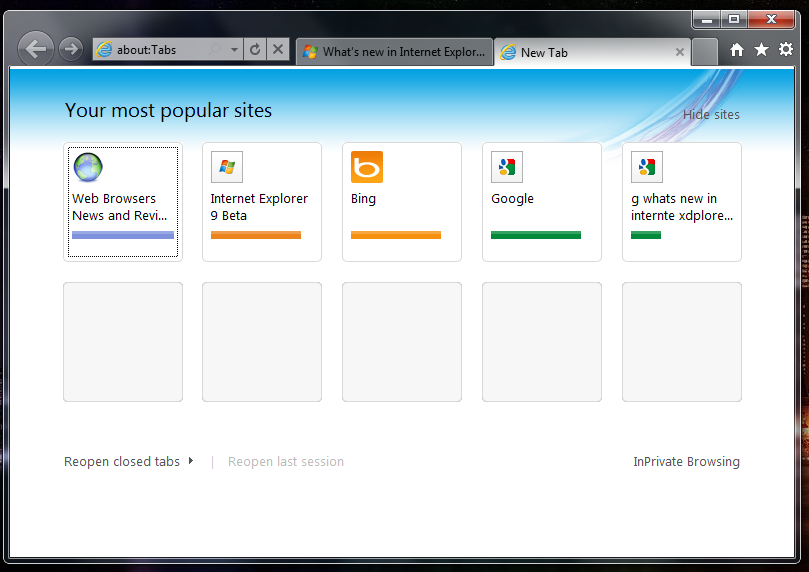
The redesigned New Tab page displays the sites you visit most often and color codes them for quick navigation. A site indicator bar also shows how often you visit each site, and you can remove or hide the displayed sites anytime you like.
Search in the address bar
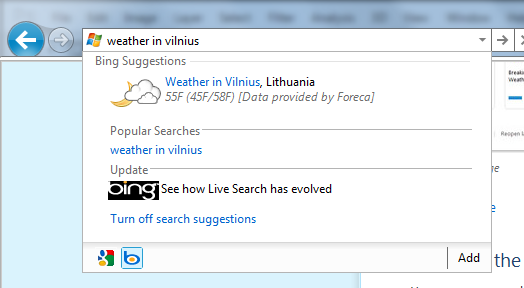
You can now search directly from the address bar. If you enter a website’s address, you’ll go directly to the website. If you enter a search term or incomplete address, you will launch a search using the currently selected search engine. Click the address bar to select your search engine from the listed icons or to add new ones.
Notification Bar
The Notification Bar that appears at the bottom of Internet Explorer gives you important status information when you need it, but it won’t force you to click a series of messages to continue browsing.

Add-on Performance Advisor
Add-ons, such as toolbars, can enhance your browsing experience, but they can also slow it down. Add-on Performance Advisor tells you if an add-on is slowing down your browser performance, and then allow you to disable or remove it.
Hardware acceleration
To speed up performance, Internet Explorer uses the power of your computer’s graphics processor, also known as a GPU, to handle graphics-heavy tasks like video streaming or online gaming. By tapping into the GPU, Internet Explorer delivers a faster and more immersive web experience.

About (Author Profile)
Vygantas is a former web designer whose projects are used by companies such as AMD, NVIDIA and departed Westood Studios. Being passionate about software, Vygantas began his journalism career back in 2007 when he founded FavBrowser.com. Having said that, he is also an adrenaline junkie who enjoys good books, fitness activities and Forex trading.
Subscribe
If you enjoyed this article, subscribe to receive more just like it.


Some new features. Looks nice, I guess its a must for all “Internet Explorers” out there. But is it worth to switch too from my FavBrowser??
ney, no can do :P
Why take away some of the most useful features like the tool bar. I can’t live with out it. Second of all you have to cram all your web sites that you have open on a half of a line on a page that you can’t even tell what the tab is for. The toolbar just takes up a small smidget of space and even then if you don’t want it then you can remove it in Win exp 8. I don’t know what’s worse their new Internet browser or there new MSN E-mail home page. Why fix something if it isn’t broken.
Where’s the menu bar. Without that your helpless.
right click anywhere on the top portion of your browser window. The menu pops up where you can turn on any of the commands that you need by checkmarking them. (toolbar, menu, favs etc) I say u should give it a shot and you’ll be able to set it up just like the previous version. It’s worth it because this browser is much faster with graphics and downloads than any previous versions.
finally installed this POS.
first – installation is a complete disaster. how the f.. a company as great as MS (win7, visual studio, dynamics, msProject etc) can so completely FUCK the installation process of something so simple as a damn browser?!?!
second – it adds some stupid RSS news feeds to my list (ms at home, ms at work and msnbc news). when did it ask? when did i allow it to do so?! this is unacceptable behaviour in this day and age!
third – it asks me FOR EACH AND EVERY PAGE I VISIT if ‘i allow flash player to modify my computer’. i might have set this worksation a little bit paranoid on the security front (it is on 24/7 and is my remote window when im out that i access with ipad or phone) but no other browser is so fucked as this one in this case
forth – it does render pages ok, and UI is VERY VERY fast,
so 3 DISASTERS and 1 OK. so long wait, so much progress and it doesnt matter, because execution is a 100% FAIL.
nice MS, hope your winMo7 will be more polished in delivery department
By that I hope you dont mean a server.
I need to test this out. YAY!
no, this is my machine at home, but i DO travel a lot recently (long earned vacations) and decided to setup robust machine that id reach remotely by ipad/phone/various laptops from around the world
and it survived this ie9 disaster quite okay, but MS please, go and check the calendar! it is 2010. opera likes to keep their customisation in INI files like in 1990, but this is MUCH MUCH worse!
Opera does not make you go through the hassle of INIs when you are installing; you only use the INIs when you want to do advanced customisation.
You know; there is a time & place for every humble technology.
Sometimes the lowly “text file” is called for. Just like in web design, sometimes the best solution is good-old-fashioned TEXT.
An INI file is an excellent choice for advanced customization of a program. It’s easy to back up, easy to edit, easy to post online/share with others, etc. MUCH BETTER than a binary registry.
Sometimes I need to use a hammer — even though the hammer has been with us for MILLENIA.
Lol Matthew. Why are you even responding to him ? He’s 12 year old clue less bastard who just hates Opera for no reason and thinks that w/e he reads on Mozilla forums is all good. I would recommend just ignore him, in fact i wouldn’t read his comments at all. :)
Ok let me see how this works.
You reply to Daniel and the idiot below you replies back to you bitching about Daniel.
I don’t think you have the audacity to call anyone a bastard. That makes you seem no more intelligent than a 2 year old. Sorry I take that back. You are dumber than a onion.
Now if this was for nobody I agree except for the bastard part.
Daniel, it is exactly what i wrote. INIs are great et all, many programs use them, but most mainstream software also has a GUI of sorts to make editin INI files a bit easier enterprise.
Opera has such GUI – it is called opera:config or whatever, but for some stupid reason it does not cover entire spectrum of INI files, so you can edit half using GUI, and another half using text editor. and it isnt so, that the non-GUI are ‘more trick’ey’ than the others.
btw. assuming that i always have bad intentions is funny
So INI’s are a bad thing now?
Doesn’t Mac use config files? I was lead to these being superior over the windows doing. Have I been deceived yet again?
My take: I’d rather have ini files which are easier to edit then hunt down registry keys.
That is if you have a better solution.
i assume you are trying to pretend stupid?
inis are ok.
what is bad is: bulk of customisation hidden deep into INI files that you have to edit by hand, and by hand care bout them being overwritten each time opera updates itself. all in 2010.
in the same 2010 where opera already implemented opera:config (or whatever it is called) but refused to implement ENTIRE customisation in the same way. i do not even as for GUI like ‘settings’ window, but TOO much what opera calls customisation is hidden in inis that are not well documented, are overwritten by opera installer programs etc.
clear?
For editing menu, toolbars, shortcuts, gestures I use UA – Opera Action Manager. Shortcuts and gestures is possible edit right in Opera (more than 700 actions with possibility of combination). Buttons, toolbars, skin and menu is possible download in one click without restart. Drag&drop are buttons, status fields or preferences.
Hi Nobody (can I call you that?)
I like you and all but our relationship has been downhill since the second half of 09.
I really like your assertiveness and the hate you spew from your egotistic head.
What do you want to change. Opera:config gives you an abundance of options. Ohh I get it. You wan the easy javascript. Well guess what! I want it, my neighbor wants it hell even my dog wants it.
If you loathe opera so fricken much then simply DO NOT USE IT.
Btch Btch. Whine. Whine.
This is the world from now on. Guess 2012 is true. It is the end of us all! I hope you are happy.
I’ve been asking myself that question for years. Microsoft makes tihs products. If Apple would lower its prices I would say addios MSFT.
Microsoft is just buying itself time. They create more pain in the XXX then the benefits they provide.
Search is pretty awesome, once you get used to it.
By that I mean: results page is not loaded, goes straight to page I was looking for, similar to Firefox behavior but bit more polished.
What’s with colored tabs ?
Too slow, just 2700 in Peacekeeper, other browser gets at lest 10k.
Don’t install it on system if IE8 is blocked from W. features it will do harm to shell.
I wonder how much of peacekeeper relate to real world usage scenarios.
What sites are so damn javascript complex that the 10k points vs 3k translate to only .5 of a second?
gmail, ymail, any web access part of office suite, any webbased project management service, any webbased colaboration suite..
there are plently, but yes, they are still minority, and given what are the typical use scenarios of sheeple theyll remain minority
People user web based mail? Where work?
Only reason I see people use online services that have desktop counterparts are people that do not live at home (People who spend most of their time outside in the big city drinking lattes and window shopping aka Girls aka I’m sexist aka this is the truth)
people DO use webmail, it is much easier than to sync inboxes between many workstations, and if you want some fun, tell your non-tech freneds/relatives what IMAP is. complete confusion, guaranteed.
webmail is for them, and they are like 95% of entire population.
only place where webmail is off limits for me is my corpo, where we are completely cut of from the internet (physicaly) and roaming profiles + exchange make it almost like webmail.
people that spend most of their time in starwhatever drinking this sad joke of coffe are mostly unemployed and they are looking for job, and job portals like monster also are quite heavy on javascript. and yes, i dont like them too :)
Is anyone else having the problem where they downloaded IE9, and then the previous Internet connection you had before with IE8 is no longer available? Can anyone please help me? I have Windows 7.
The download process is a bit long, but so far it’s not bad, much faster downloads and graphics. I used to have to wait for 1080hd clips on you tube, not anymore!